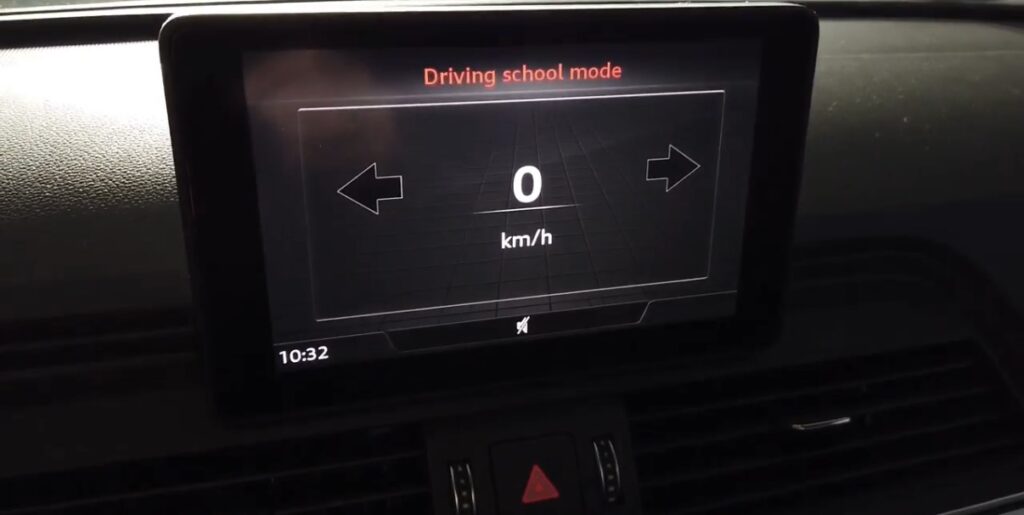
Purpose: Adds a “Driving School” view to the MMI MIB1 A3 8V1 or MMI MIB2 High Scale A3 8V2, which displays turn signals, speed, and more… (Also ideal for accompanied driving)
Procedure:
1 – With the engine off and the ignition off, connect your official VAG-COM VCDS cable to the computer, then plug the other end into your vehicle’s diagnostic port.
2 – Turn on the ignition, then launch the VCDS program.
MMI MIB1 A3 8V1:
Line 1:
3 – Click “Select,” then click “5F – Electrical Information.“
4 – Click “Security Access – 16,” then enter the code “20103“
5 – Click “Adaptation – 10.”
6 – At the very top of this page, there is a drop-down menu.
From this drop-down menu, select “Vehicle function list CAN-Driving_school“
7 – On this same page, there is a second drop-down menu located toward the bottom
of the page.
From this menu, select “active” and then confirm.
Line 2:
3 – Click “Select,” then click “5F – Electrical Information.“
4 – Click “Security Access – 16,” then enter the code “20103“
5 – Click “Adaptation – 10.”
6 – At the very top of this page, there is a drop-down menu.
From this drop-down menu, select “Vehicle menu operation-menu_display_driving_school“
7 – On this same page, there is a second drop-down menu located toward the bottom
of the page.
From this menu, select “active” and then confirm.
Line 3:
3 – Click “Select,” then click “5F – Electrical Information.“
4 – Click “Security Access – 16,” then enter the code “20103“
5 – Click “Adaptation – 10.”
6 – At the very top of this page, there is a drop-down menu.
From this drop-down menu, select “Vehicle menu operation-menu_display_driving_school_over_threshold_high“
7 – On this same page, there is a second drop-down menu located toward the bottom
of the page.
From this menu, select “active” and then confirm.
MMI MIB2 High Scale A3 8V2:
Line 1:
3 – Click “Select,” then click “5F – Electronic Information.“
4 – Click on “Security Access – 16,” then enter the code “20103.”
5 – Click on “Adaptation – 10.”
6 – At the very top of this page, there is a drop-down menu.
In this drop-down menu, select “Car Function List CAN GEN2– Driving_school“
7 – On this same page, there is a second drop-down menu located toward the bottom
of the page.
From this menu, select “active” and then confirm.
Line 2:
3 – Click “Select,” then click “5F – Electrical Information.“
4 – Click “Security Access – 16,” then enter the code “20103“
5 – Click “Adaptation – 10.”
6 – At the very top of this page, there is a drop-down menu.
From this drop-down menu, select “Car Function List CAN GEN2 – Driving School msg bus“
7 – Sur cette même page se trouve un deuxième menu déroulant mais vers le bas
de la page.
Sur ce dernier, choisir “Databus infotainment” ou “Terminal 15” puis valider.
Line 3:
3 – Click “Select,” then click “5F – Electrical Information.“
4 – Click “Security Access – 16,” then enter the code “20103“
5 – Click “Adaptation – 10.”
6 – At the very top of this page, there is a drop-down menu.
In this drop-down menu, select “Car Function Adaptations Gen2– menu_display_driving_school“
7 – On this same page, there is a second drop-down menu located toward the bottom
of the page.
From this menu, select “active” and then confirm.
Line 4:
3 – Click “Select,” then click “5F – Electrical Information.“
4 – Click “Security Access – 16,” then enter the code “20103“
5 – Click “Adaptation – 10.”
6 – At the very top of this page, there is a drop-down menu.
From this drop-down menu, select “Vehicle menu operation-menu_display_driving_school_over_threshold_high“
7 – On this same page, there is a second drop-down menu located toward the bottom
of the page.
From this menu, select “active” and then confirm.
Restart the MMI, Driving School Mode in the Vehicle menu –> Driving Assistant
This post is also available in:
 Français (French)
