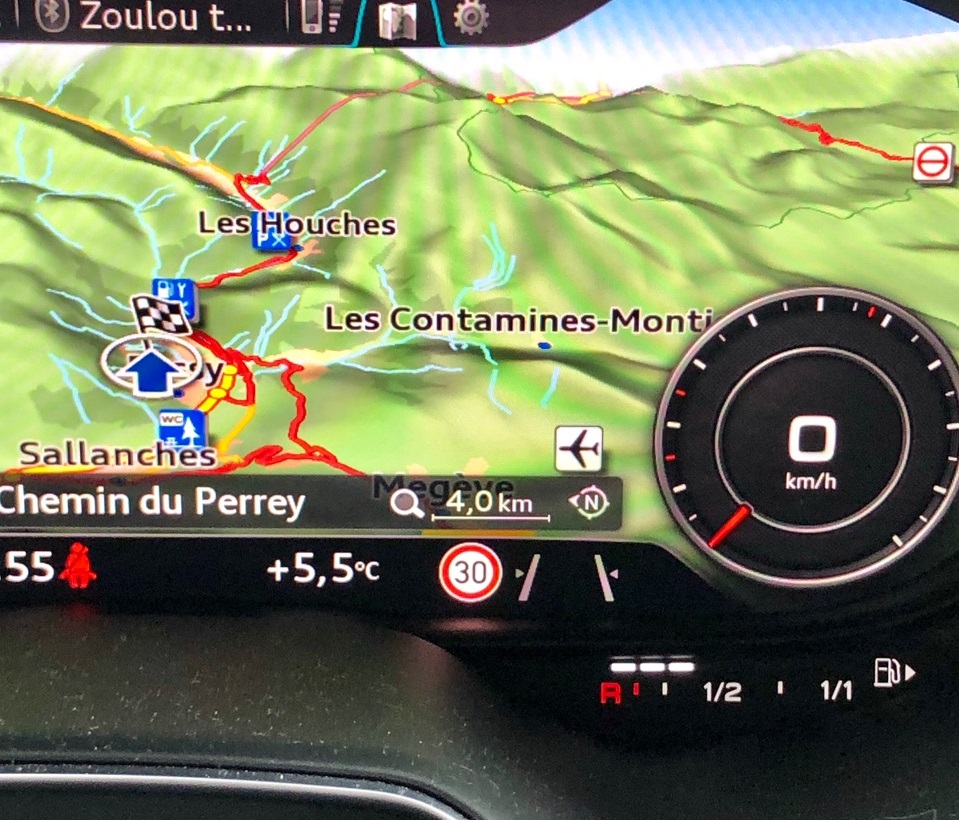

Purpose: displays speed limit signs on the ODB/Virtual Cockpit (Sign Assist)
The vehicle must be equipped with Lane Assist.
Warning! There are 8 lines of coding to do here.
Proceed :
1 – Engine off, ignition off, connect your official VAG-COM VCDS cable to
the computer, then plug the other end into your vehicle’s diagnostics socket.
2 – Switch on the ignition and run the VCDS program.
Line 1:
3 – Click on“Select” then click on“5F – Electr. information”.
4 – Click on“Security Access – 16” then enter the code“20103”.
5 – Click on“Adaptation – 10”.
6 – On this page, at the very top, there is a drop-down menu.
In this drop-down menu, choose“Vehicule function list BAP-traffic_sign_recognition_0x21”.
7 – On this same page, there is a second drop-down menu, but at the bottom
of the page.
On this menu, choose“activated” and confirm.
Line 2:
3 – Click on“Select” then click on“5F – Electr. information”.
4 – Click on“Security Access – 16” then enter the code“20103”.
5 – Click on“Adaptation – 10”.
6 – On this page, at the very top, there is a drop-down menu.
In this drop-down menu, choose“Vehicule function list BAP-traffic_sign_recognition_0x21_msg-bus”.
7 – On this same page, you’ll find a second drop-down menu at the bottom
of the page.
On this menu, select“Data Extended” and confirm.
Line 3:
3 – Click on“Select” then click on“5F – Electr. information”.
4 – Click on“Security Access – 16” then enter the code“20103”.
5 – Click on“Adaptation – 10”.
6 – On this page, at the very top, there is a drop-down menu.
In this drop-down menu, choose“Vehicule menu operation-menu_display_road_sign_identification”.
7 – On this same page, there is a second drop-down menu at the bottom
of the page.
On this menu, choose“activated” and confirm.
Line 4:
3 – Click on“Select” then click on“5F – Electr. information”.
4 – Click on“Security Access – 16” then enter the code“20103”.
5 – Click on“Adaptation – 10”.
6 – On this page, at the very top, there is a drop-down menu.
In this drop-down menu, choose“Vehicule menu operation-menu_display_road_sign_identification_over_threshold_high”.
7 – On this same page, there is a second drop-down menu at the bottom
of the page.
On this menu, choose“activated” and confirm.
Note: With MY2016, the traffic sign display in the navigation system must be deactivated. Otherwise, the “Traffic sign based” submenu does not appear in the MMI speed warning menu. Disable byte 24 –> bit 6
Line 5:
3 – Click on“Select” then click on “.A5 – Frt Sens. Drv. Assist“.
4 – Click on“Coding – 07” then click on“Long Coding Helper”.
5 – Select byte“1”
Then, in the Bit 0-7 drop-down menu, select“01 Coding_VZE coded”.
Or (after 2018)
Byte 16, check Bit 4“traffic_sign_detection”.
Line 6 (Optional):
3 – Click on“Select” then click on “.A5 – Frt Sens. Drv. Assist“.
4 – Click on“Security Access – 16” then enter the code“20103”.
5 – Click on“Adaptation – 10”.
6 – On this page, at the very top, there is a drop-down menu.
In this drop-down menu, choose“Display end of speed limit symbol”.
7 – On this same page, there is a second drop-down menu at the bottom
of the page.
On this menu, choose“activated” and confirm.
Line 7 (optional) :
3 – Click on“Select” then click on “.A5 – Frt Sens. Drv. Assist“.
4 – Click on“Security Access – 16” then enter the code“20103”.
5 – Click on“Adaptation – 10”.
6 – On this page, at the very top, there is a drop-down menu.
In this drop-down menu, choose“Display valid additional characters”.
7 – On this same page, there is a second drop-down menu at the bottom
of the page.
On this menu, choose“activated” and confirm.
Line 8:
3 – Click on“Select”, then click on“17 – Instruments”.
4 – Click on“Security Access – 16” then enter the code“20103”.
5 – Click on“Coding – 07” then click on“Long Coding Helper”.
6 – Select byte“5”
Then check Bit“2”:“Traffic Sign Recognition installed”.
Select byte“14”
Then check bit“6”:“traffic_sign_detection” (if available)